
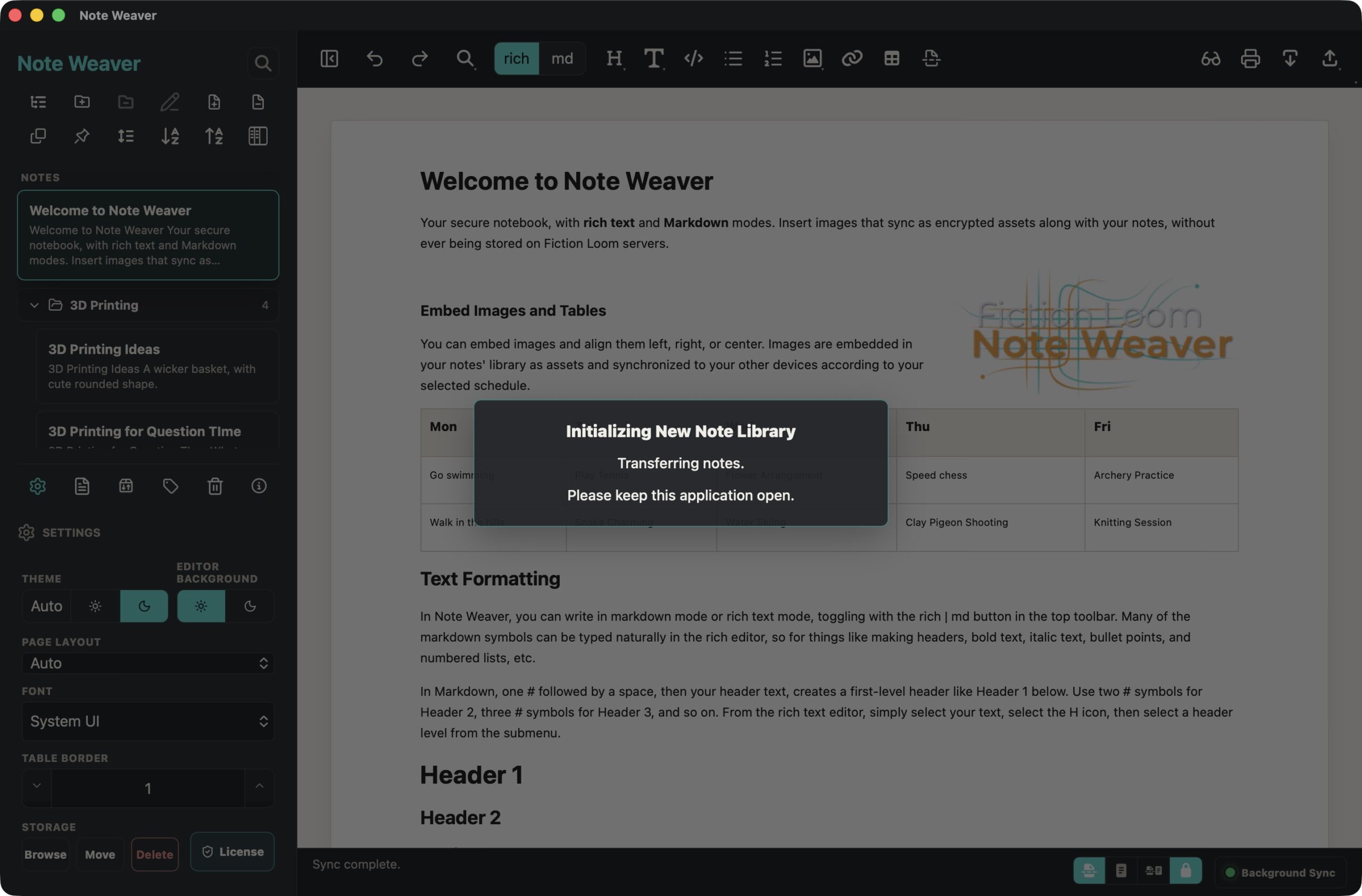
When you first open Note Weaver, you will be prompted to synchronize with another device. This is because, at that point, we do not know whether other devices are already using the same license. For your first device, please select Cancel, and you will be taken to Note Weaver with the Welcome note and a folder containing the User Manual preinstalled as a note. The Welcome Note contains enough information to get started with Note Weaver, but ideally, please do take a look through the User Manual as well for a deeper understanding.
If you have notes from Obsidian, Bear, or OneNote that you want to import into Note Weaver, we have added Importers for these three applications to the Import section. See our Getting Started and Importing Notes into Note Weaver video for details.
We recommend importing your notes on the first device, using either Mac or Windows, before onboarding other devices. If you have time, organize your existing notes, and then install Note Weaver on the first of your other devices. When you have authorized your license on further devices, they will connect to our synchronization servers and be introduced to each other as members of your account. If the new device has no notes other than the Welcome Note and User Manual, it will kick off an onboarding session to synchronize your library from the first device.
During this time, please leave Note Weaver open on both devices if possible. For libraries with several hundred notes, onboarding other desktop devices and high-spec mobile devices usually takes just a few seconds to a few minutes. There are many lower-spec Android devices on the market, which can take considerably longer if you have a large library containing large images. Note Weaver will try to stay connected until the final verification that both devices contain an identical copy of your library as a basis for future file synchronization.
We also prepared a video to walk you through getting started, importing notes, and onboarding new devices.
If onboarding fails for any reason, you will see a Try Again button. Ensure that your first device is still available with Note Weaver started, and try again. Even if you cancel onboarding for any reason, until the second device confirms a full copy of the original device's library, the onboarding session will reopen and synchronize any remaining missing notes and assets.
After successfully onboarding your second device, start to add other devices as necessary. Note Weaver allows up to five devices on Mac, Windows, iOS, and Android to be used on a single license. Onboarding can occur across any combination of devices, but Note Weaver will try to identify the higher-power device and generally prefers Desktop over mobile devices as the source for the onboarding session.
Note, too, that improvements to onboarding for slower devices were made in version 1.1.5 of Note Weaver. Check the version in your About section and update to 1.1.5 or later if you are experiencing problems. Please contact support at any time if you have any problems.